Using the Printer Driver
The OL Connect Printer Driver can be used like any physical printer. Just go through the usual steps:
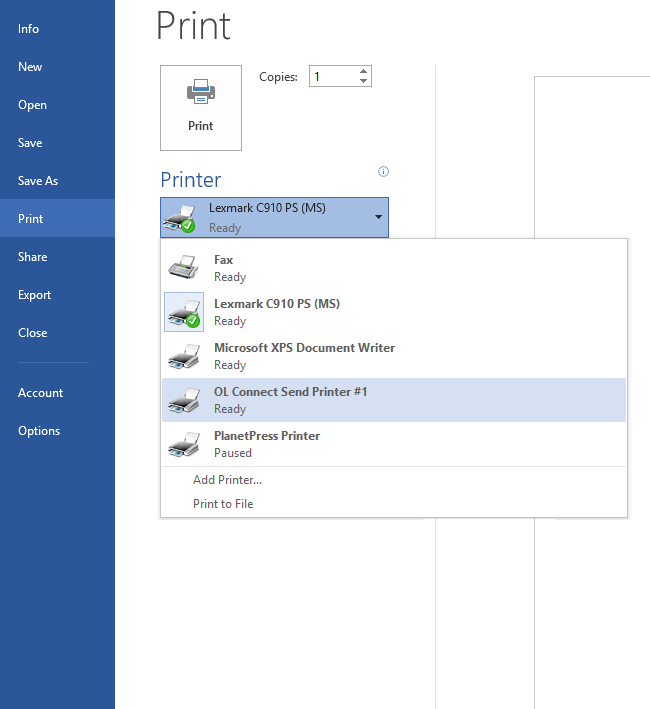
- Click the Print button (or use the menu from the software used). The Print dialog appears.
- In the Print dialog, select a printer that works with the OL Connect Send printer driver and click OK.
The OL Connect Send Printer (2.1) generates a local PostScript file. This data is zipped and sent in one or multiple chunks to the Workflow server (2023.1). Depending how the environment has been setup, information is sent using the HTTP or HTTPS protocol. As part of the process, the license is verified and, on a successful handshake and in interactive mode, the browser on the customer’s machine is launched showing the interactive web page defined in the installation process.
Caution:
It is recommended not to use Adobe Acrobat Reader to print PDF files with OL Connect Send. Print the source file (e.g. the Word file) whenever available. If PDF files are to be printed with OL Connect Send, use a different PDF viewer instead.
Adobe Acrobat Reader produces its own PostScript file, rather than passing the PDF to the OLCS Printer Driver to generate the PostScript file. This does not hinder the transfer of the file, but the PostScript file produced by Adobe Acrobat Reader sometimes lacks information about the original PDF, which may cause errors in the processing of that file and in the interaction following the transfer.
Paper Size v Printer Page Size: It is important to ensure that paper size settings match the printer driver settings. If this is not done, it’s possible that the print job transferred to Connect Send may include some extra white space on the page. In interactive mode, this can be seen, but in non-interactive mode the job will be processed without notification.